How to manage invoices and billing in the Dashboard
Last updated: May 5, 2026
How to locate invoices, interpret billing records, and handle refund requests.
Finding invoices
Open the subscriber account → navigate to Invoices or Billing
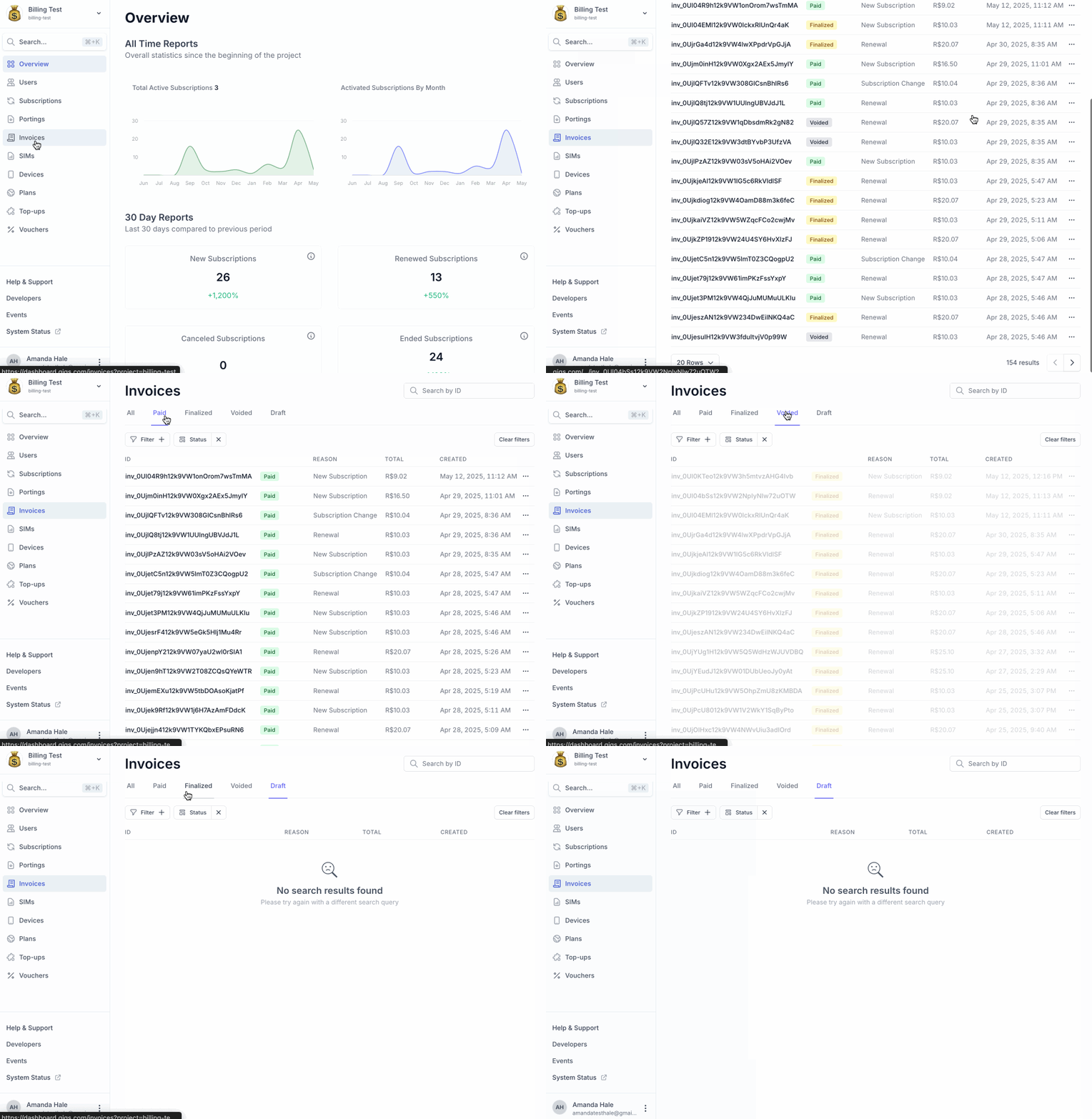
Each invoice shows: Invoice ID, date issued, billing period, line items, total charged, and payment status
Invoice status reference
Status | Meaning |
Paid | Payment collected successfully |
Open | Invoice generated but payment not yet collected |
Void | Invoice cancelled — no charge taken |
Uncollectible | Payment failed and will not be retried — subscription may be restricted |
Refunded | Full or partial refund has been issued |
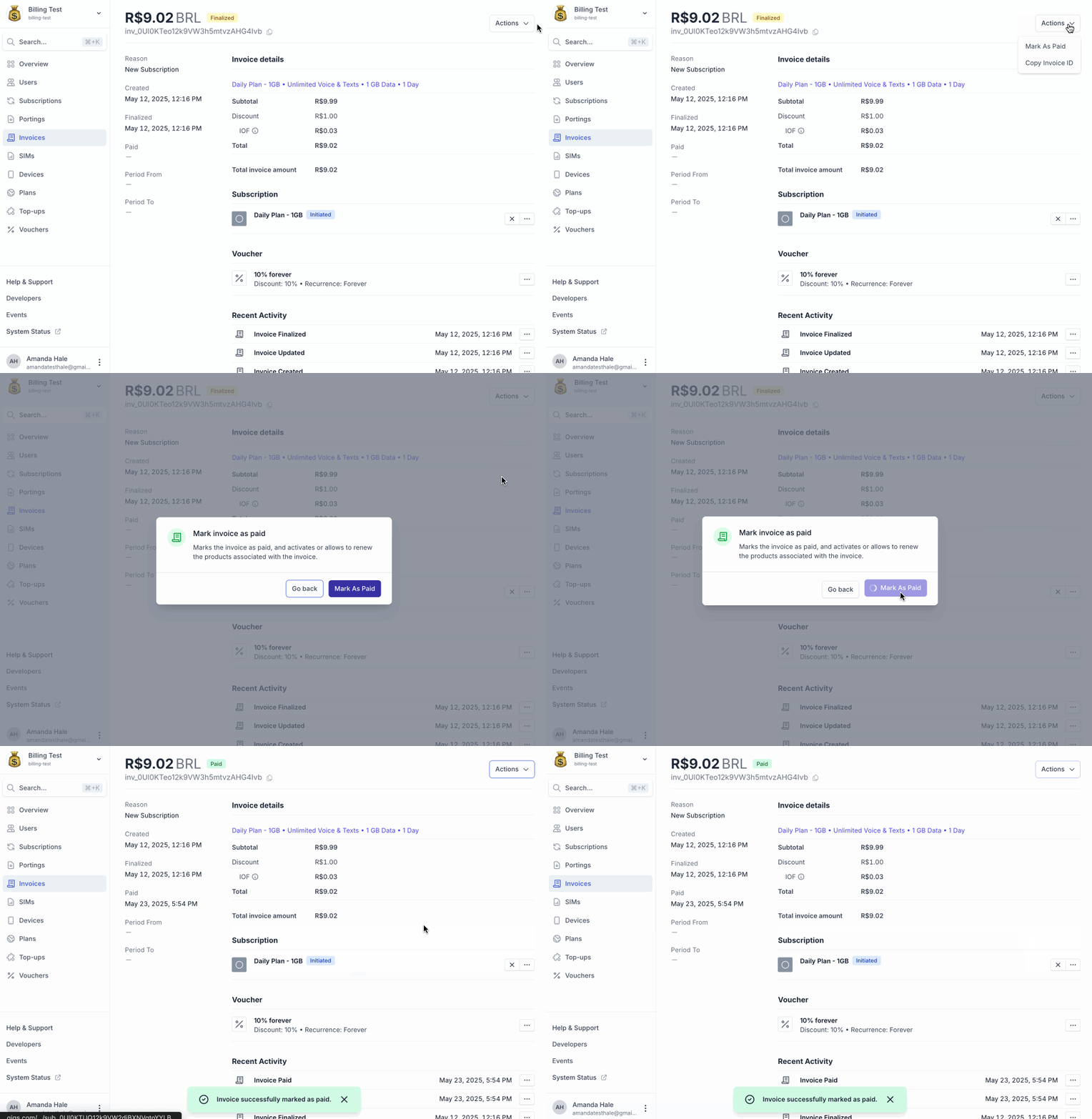
How to Mark an Invoice as Paid
Click Actions > Mark as Paid
Confirm the payment date and method in the dialog
Click Confirm
Handling refund requests
Check who is the Billing Agent for this subscriber's plan — refer to your Implementation Specification.
If Gigs is the Billing Agent: raise refund requests via support@gigs.com with Subscription ID, Invoice ID, billing period, amount, and reason. Refunds approved by Gigs are returned within up to 10 business days.
If your organization is the Billing Agent: refund management is handled within your own billing system.
This article doesn't cover:
Getting started →Getting started with the Gigs Dashboard