How to manage Members
Last updated: April 10, 2026
Members are the people in your organization who have access to the Gigs Dashboard. As an organization Owner, you can invite new Members, set their roles, and manage or revoke their access at any time.
Member roles
Role | What they can do |
Viewer | View subscriptions, users, plans, and other data. No edit access. |
Support | View data and perform a limited range of edit actions — including managing subscriptions, handling portings, and updating user details. |
Owner | Full access to Dashboard, including developer settings, API key management, webhooks, vouchers, Connect links, and reports. |
Roles can be assigned at the organization level (applies to all projects in your org) or at the project level (applies to a specific project only).
Viewing Members
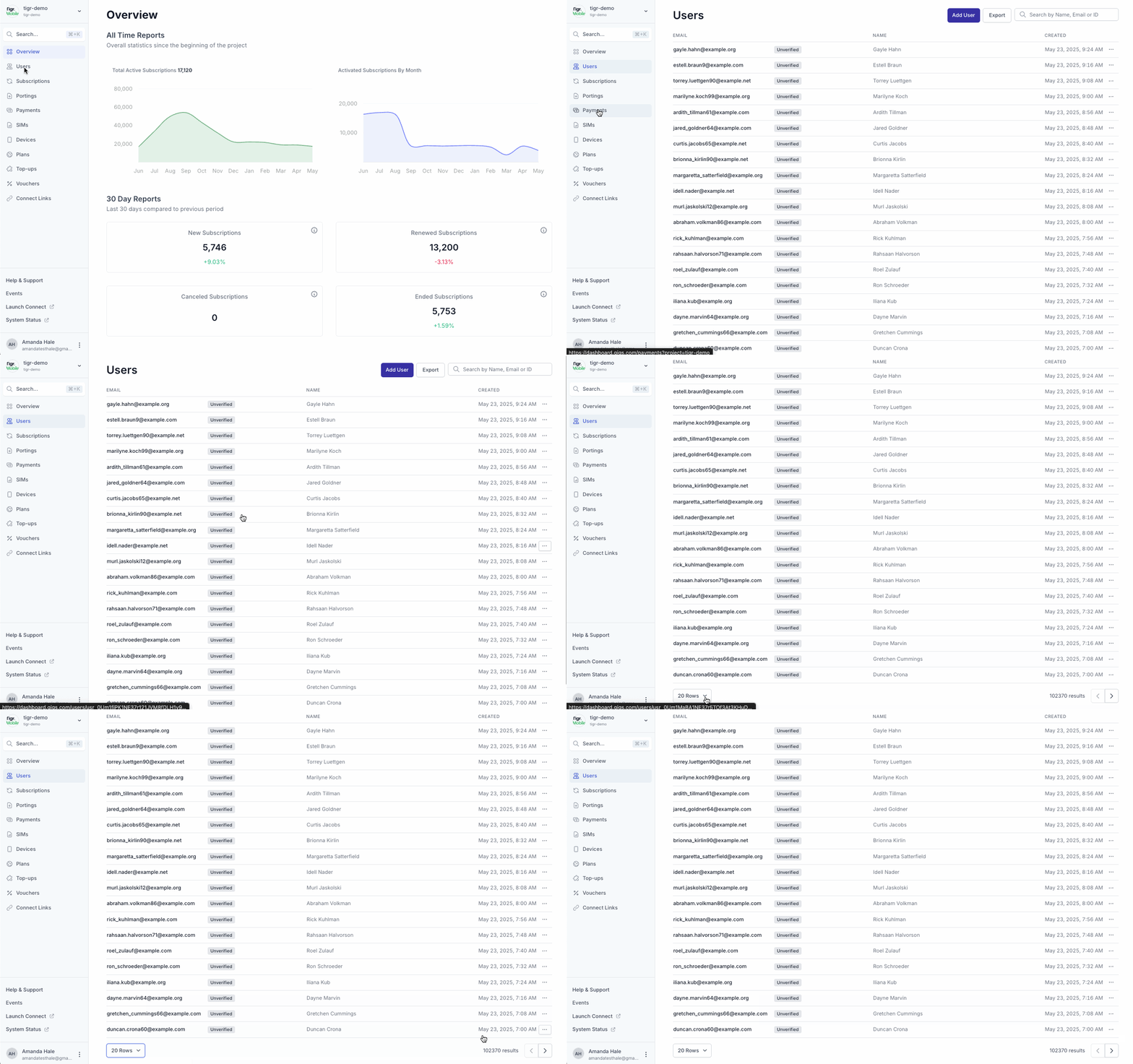
Navigate to Organization Members in the left-side navigation. You'll see a list of all Members and their current access level.
Each Member can be:
Active — currently has access to at least one project in your organization.
Suspended — previously had access but no longer does.
This section is only visible to Organization Owners.
Inviting a new Member
Go to Organization Members:
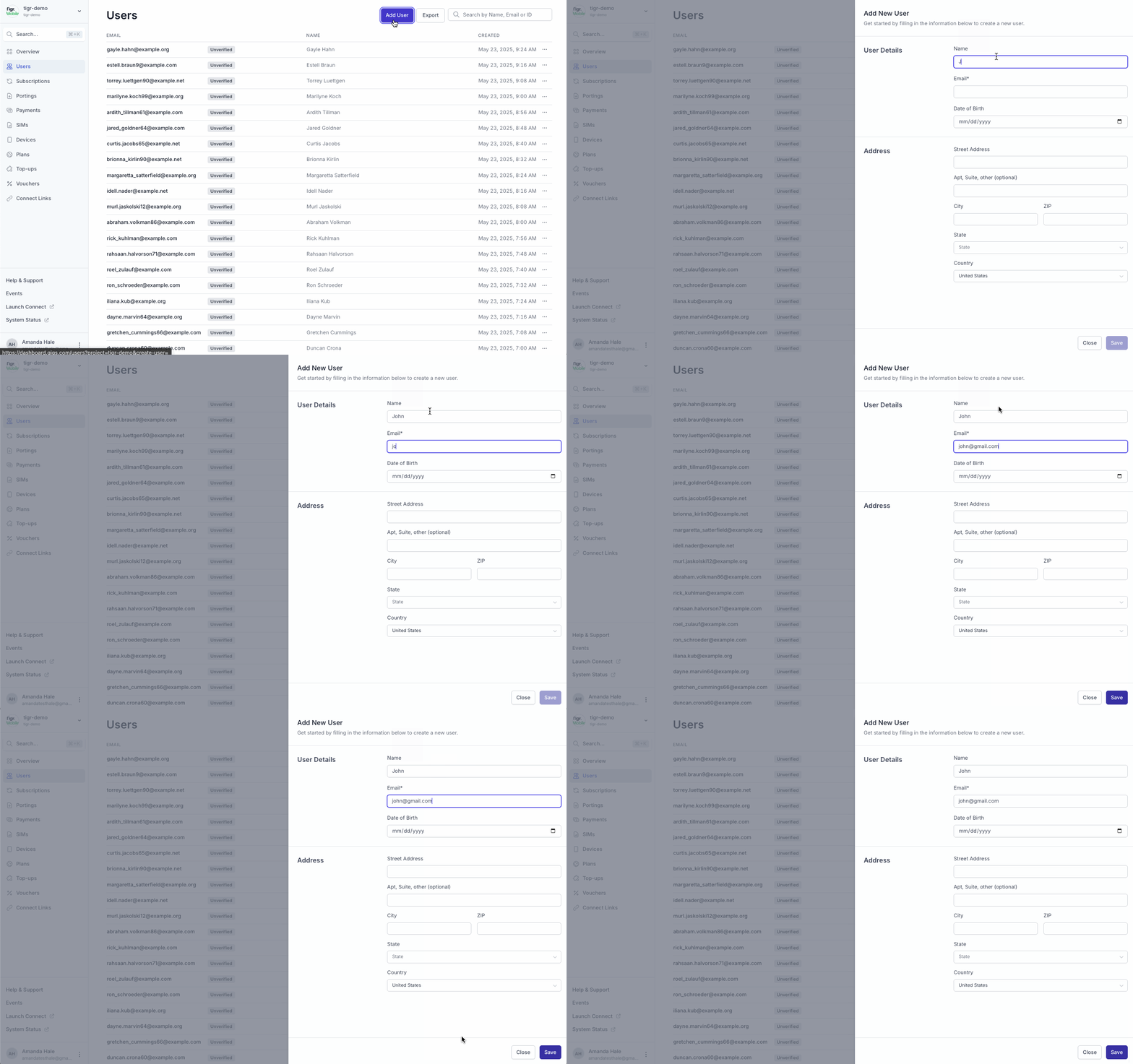
Click Invite Member and enter their email address.
Select their role — either at the organization level or for a specific project.
Send the invitation.
The invited person will receive an email with an acceptance link. Once they click it, they'll be prompted to enter their name and log in. Invitations are valid for 7 days.
You can resend, cancel, or remove expired invitations from the Invitations tab.
Editing a Member's access
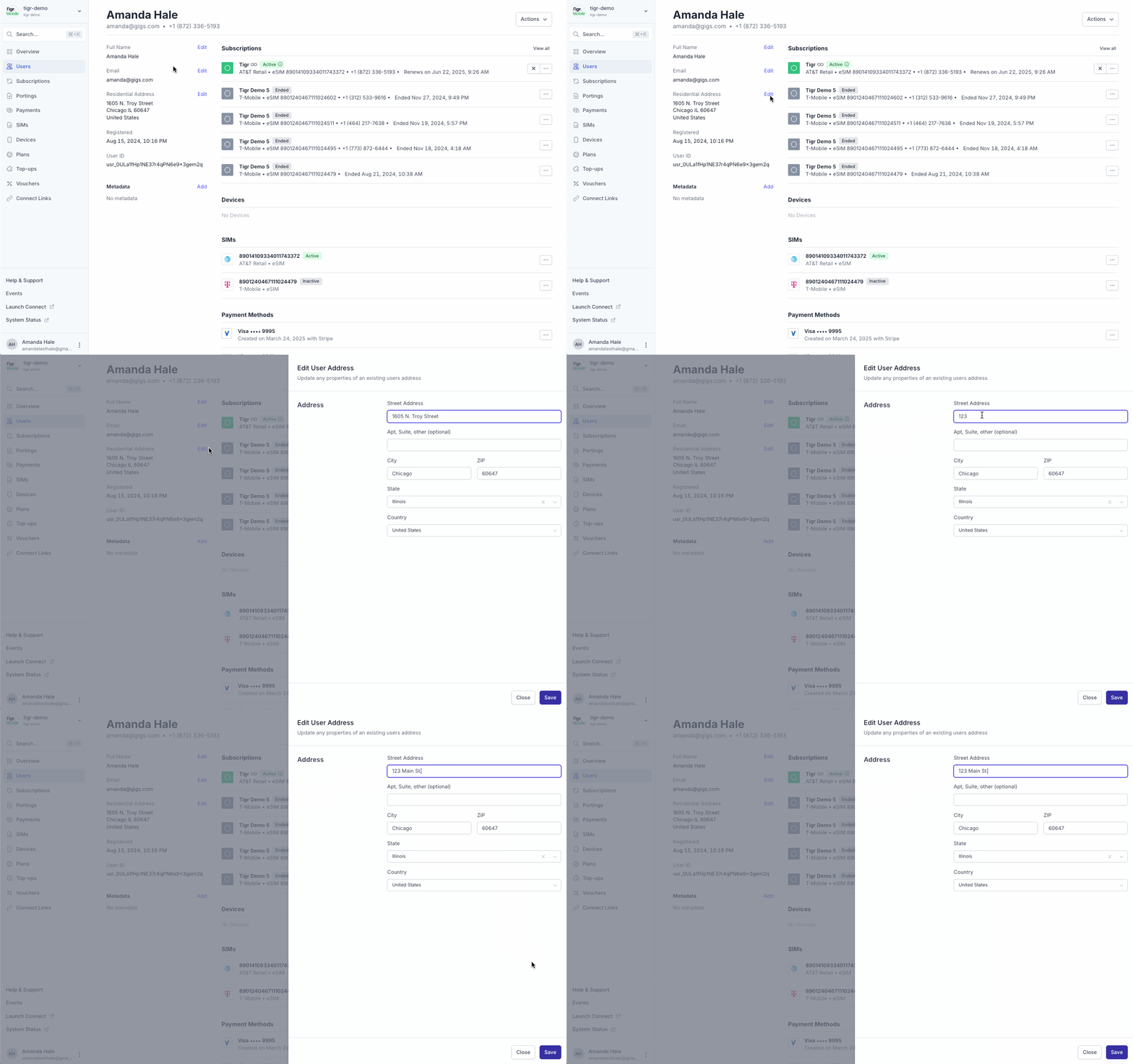
Find the Member in Organization Members and click the three-dot menu.
Choose Edit access.
Update their role and save. Changes take effect immediately.
Revoking a Member's access
Find the Member in Organization Members, click the three-dot menu, and select Revoke access. The Member's status will change to Suspended. Suspended memberships are retained for audit and reference purposes.
This article doesn't cover:
Getting started →Getting started with the Gigs Dashboard