How to manage portings in the Dashboard
Last updated: June 19, 2026
How to find, read, and act on porting records in the Gigs Dashboard.
Finding porting records
Open the subscriber's account or subscription → navigate to the Portings tab
Both port-in and port-out requests are listed with timestamps and current status
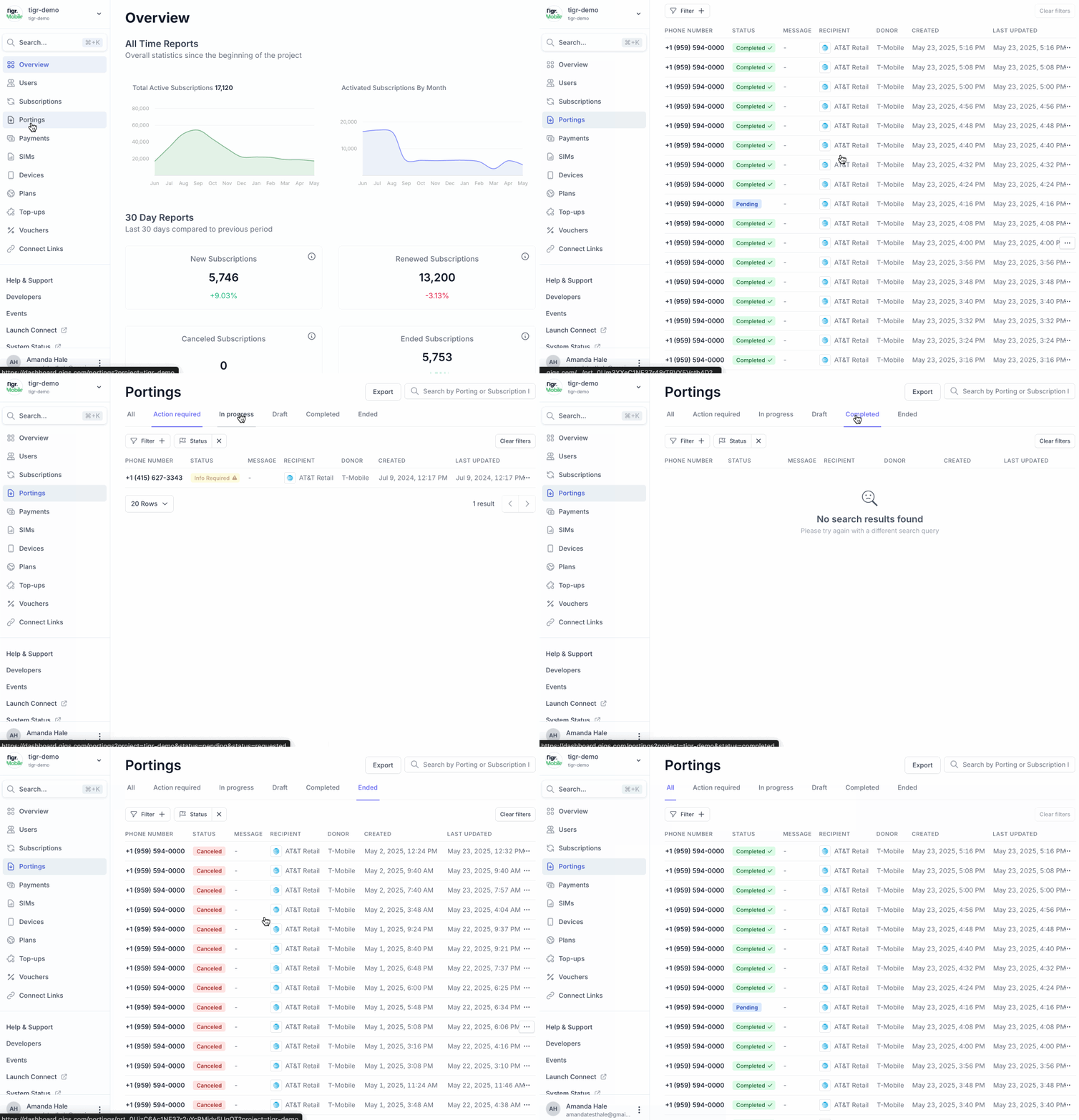
Port-in status reference
Status | Meaning | What to do |
draft | Port-in request created but not yet submitted | Verify credentials and submit when ready |
initiated | Submission sent to losing carrier — awaiting response | Normal — monitor for updates |
pending | Awaiting losing carrier approval | Normal — monitor if beyond expected SLA |
informationRequired | More information is needed before the port can be submitted to the network | Contact subscriber for corrected details and resubmit — the port will not be submitted until all needed information is provided |
requested | Approved by losing carrier — cutover pending | Normal — brief service interruption expected during cutover |
declined | Losing carrier declined the port | Check reason, correct details, and guide subscriber on resubmission |
completed | Port fully complete — number is live on the Gigs network | No action needed unless subscriber reports an issue |
canceled | Port-in was cancelled | Subscriber can re-initiate if number still active with losing carrier |
expired | Port request timed out without completing | Have subscriber resubmit a new port-in request |
failed | Port failed during or after cutover | Check error details; escalate to Gigs support if persistent |
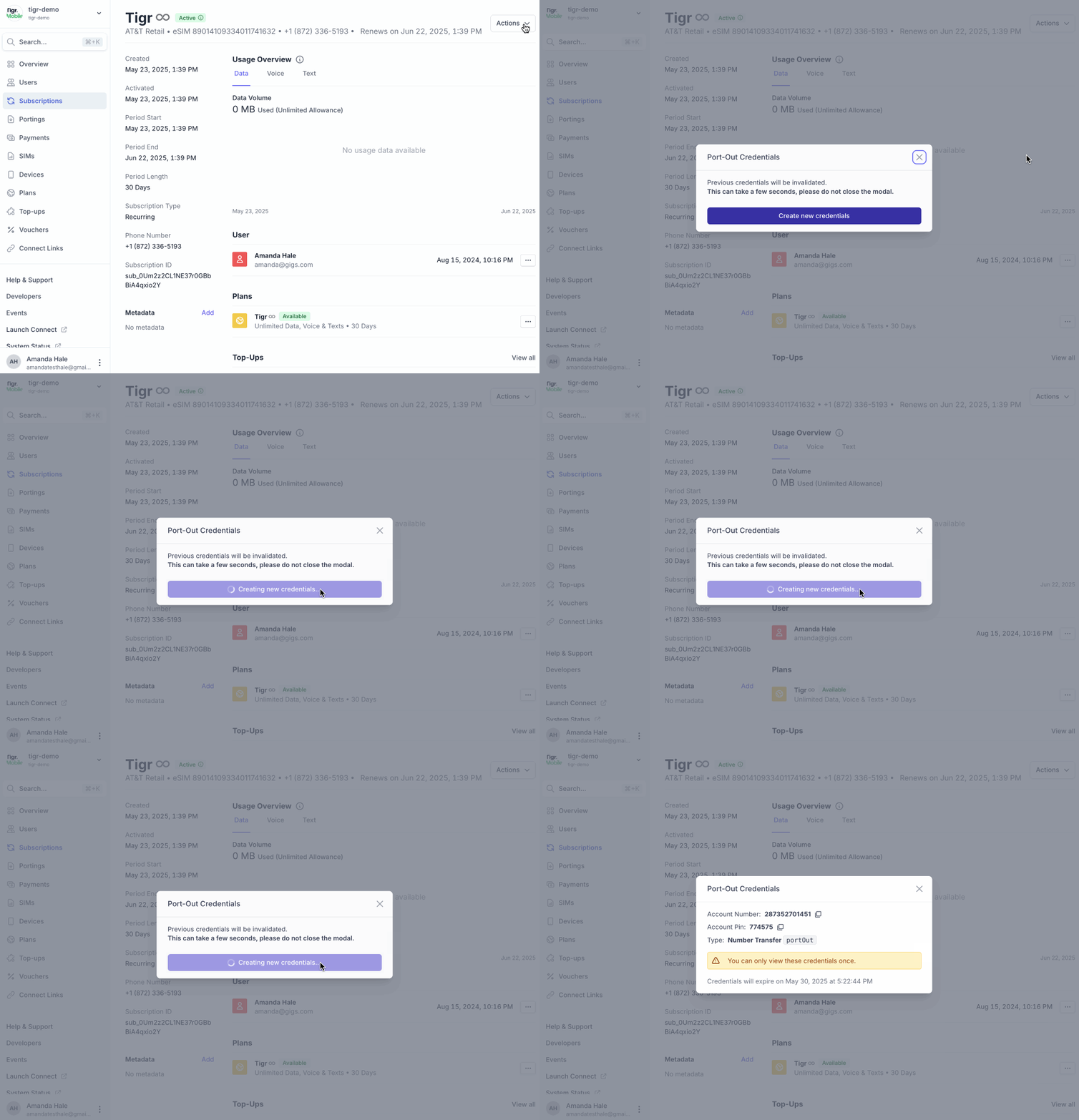
How to Create Port‑Out Credentials
Click + New Porting or Create Credentials
Fill in:
Direction: Out
Phone number, old provider’s Account Number, Porting PIN, ZIP/Postcode, etc.
Click Generate Credentials
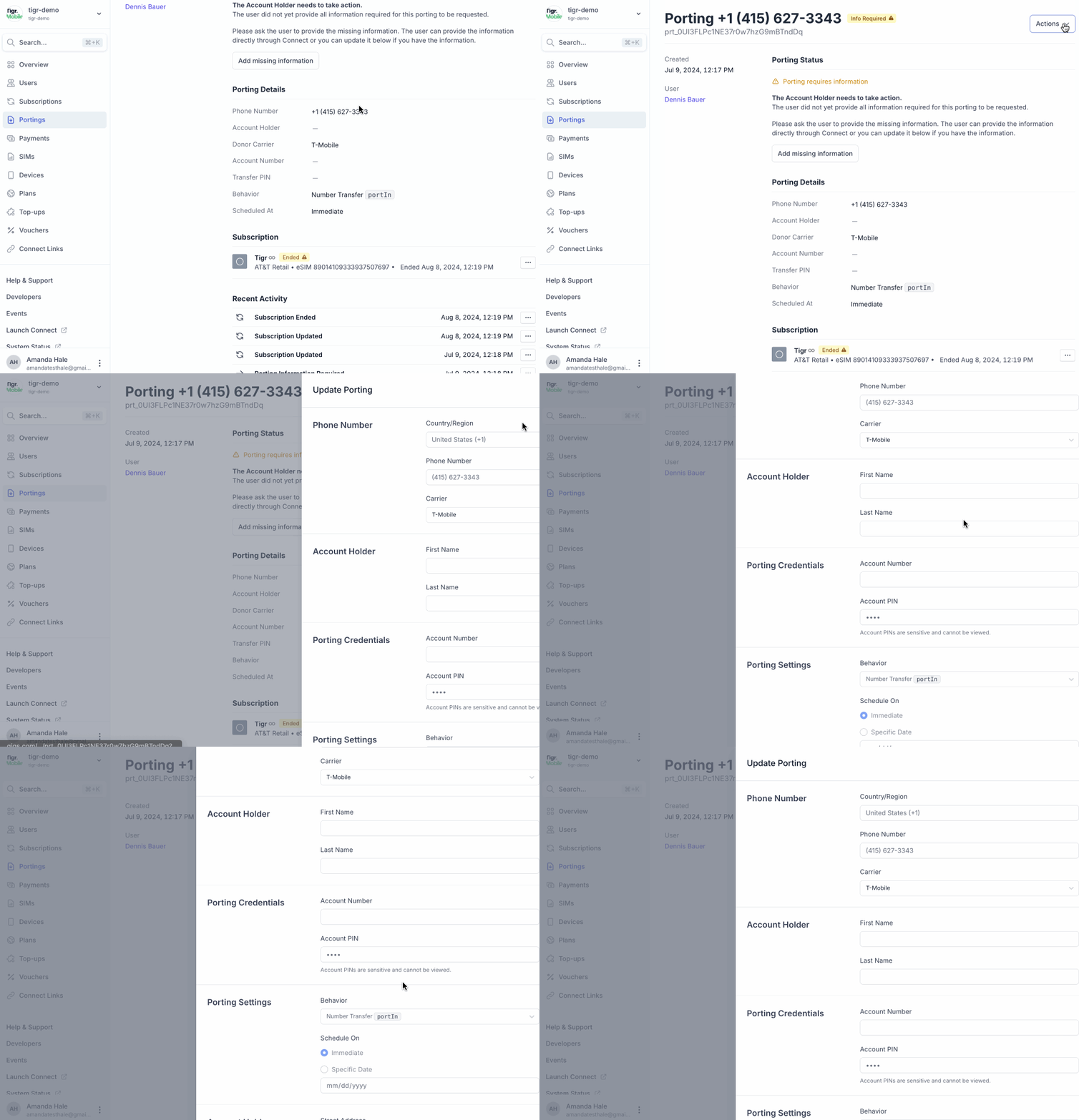
How to Update Porting Details
Click Actions > Update Porting
Correct any editable field (e.g. PIN, billing ZIP)
Click Submit Update
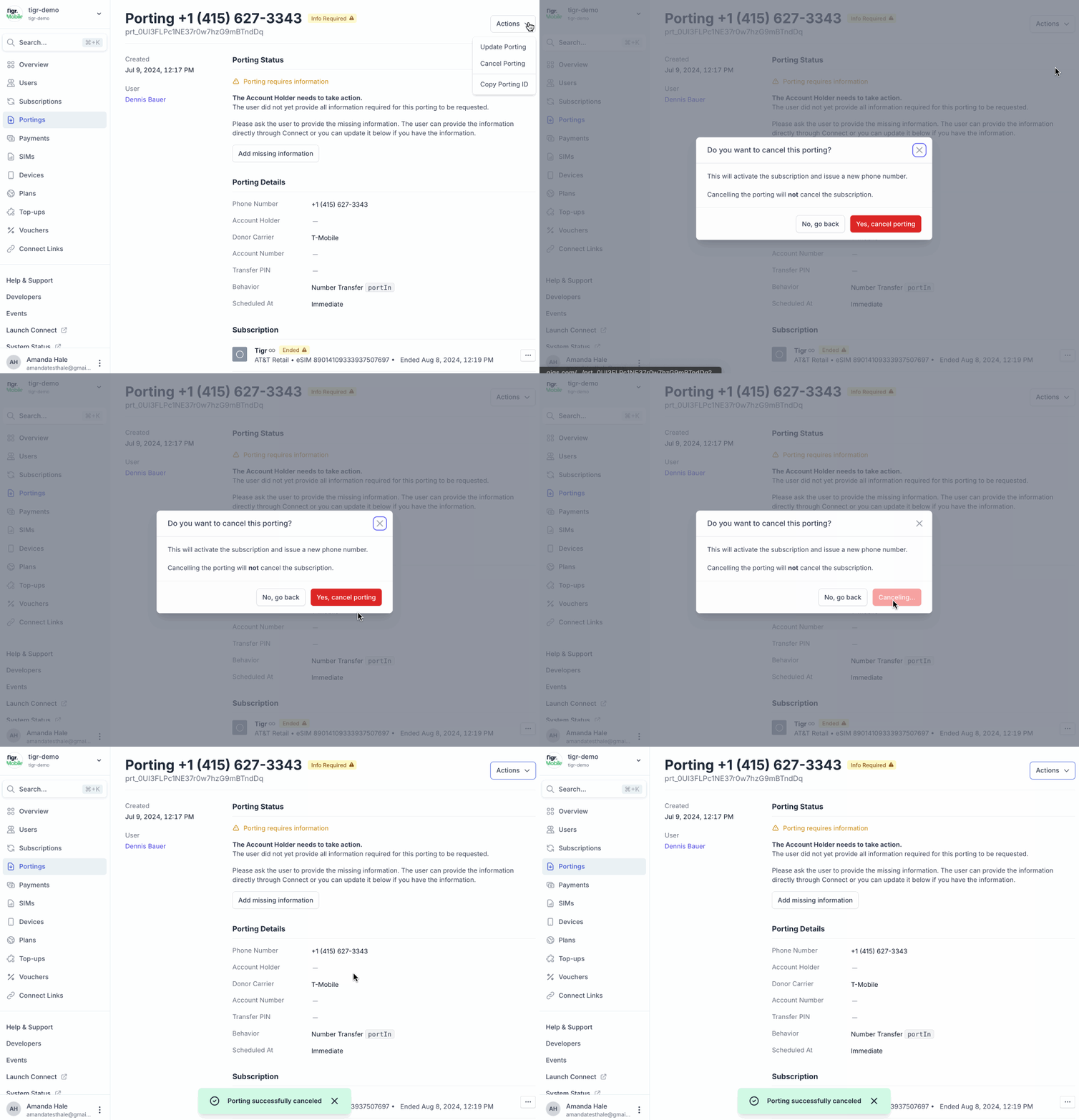
How to Cancel a Porting Request
Open the porting entry (status should be “pending”, “informationRequired”, or “requested”)
Click Actions > Cancel Porting
Confirm cancellation in the modal prompt
Port-in SLA reference
US: Typically completes within one business day of a valid submission
UK: Required to complete within one working day (Mon–Fri 9am–5pm) under Ofcom regulations. Delays beyond this may entitle subscriber to Ofcom automatic compensation — escalate to Gigs support immediately.
Unauthorized port-out
If a subscriber reports they didn't authorize a port-out, treat as a potential fraud event. Escalate to Gigs support immediately via support@gigs.com. Do not attempt to reverse without Gigs support direction.
This article doesn't cover:
Getting started →Getting started with the Gigs Dashboard
Reading Events →Reading the Events tab