How to manage subscriptions in the Dashboard
Last updated: May 5, 2026
Key fields and actions available in the Subscriptions section of the Gigs Dashboard.
Key subscription fields
Field | What it tells you |
Subscription ID | Unique identifier — always include in support escalations |
Status | pending, initiated, active, restricted, or ended |
Plan ID | The plan the subscriber is on — links to data cap, features, and pricing |
MSISDN | The phone number assigned to this subscription |
ICCID | The SIM or eSIM identifier — use for SIM-level investigations |
Activation date | When the subscription became active and billing started |
Renewal date | The next billing date |
Feature flags | Which features are provisioned: voice, SMS, data, voicemail, roaming, VoLTE, VoWiFi, hotspot |
Data usage | Current cycle usage vs the plan's data cap |
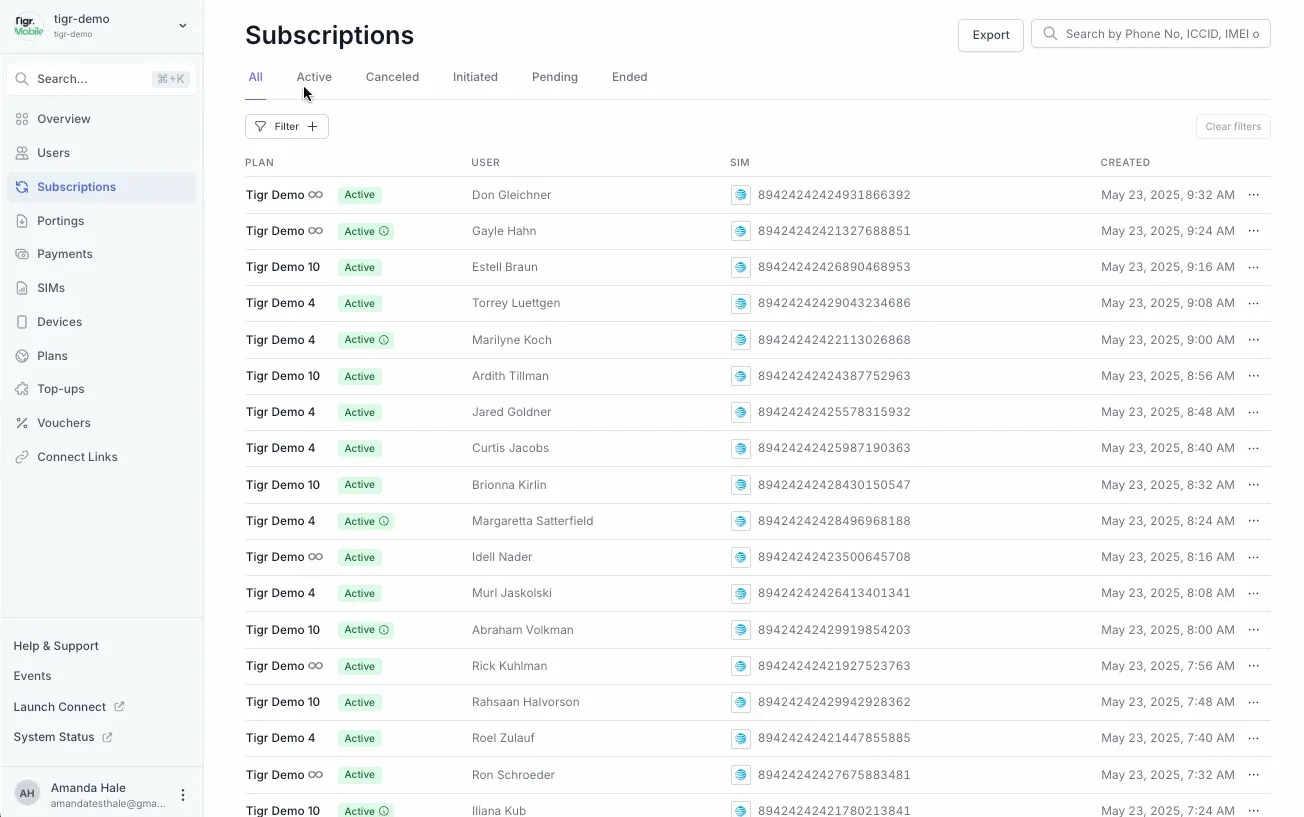
How to View a Subscription
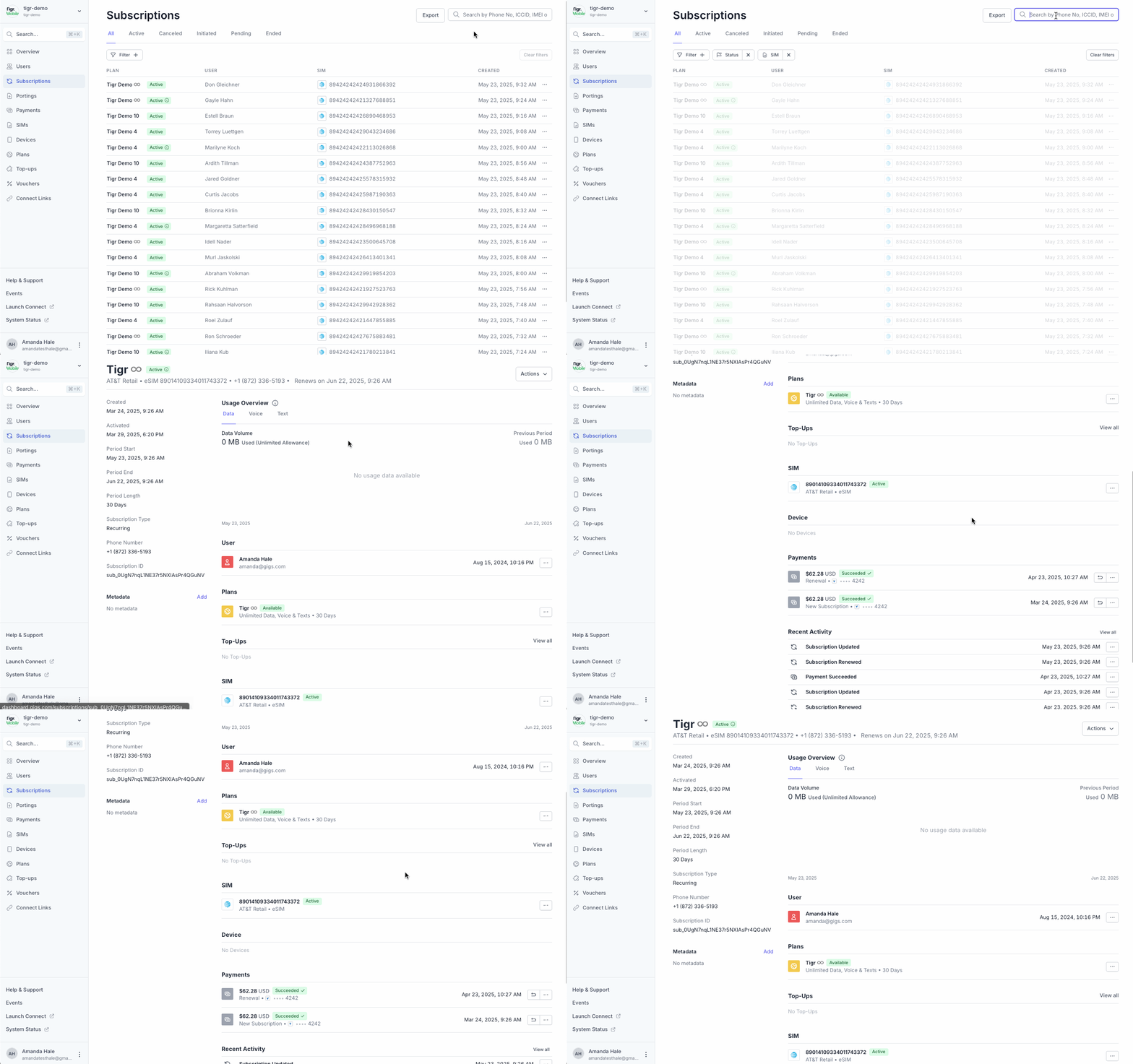
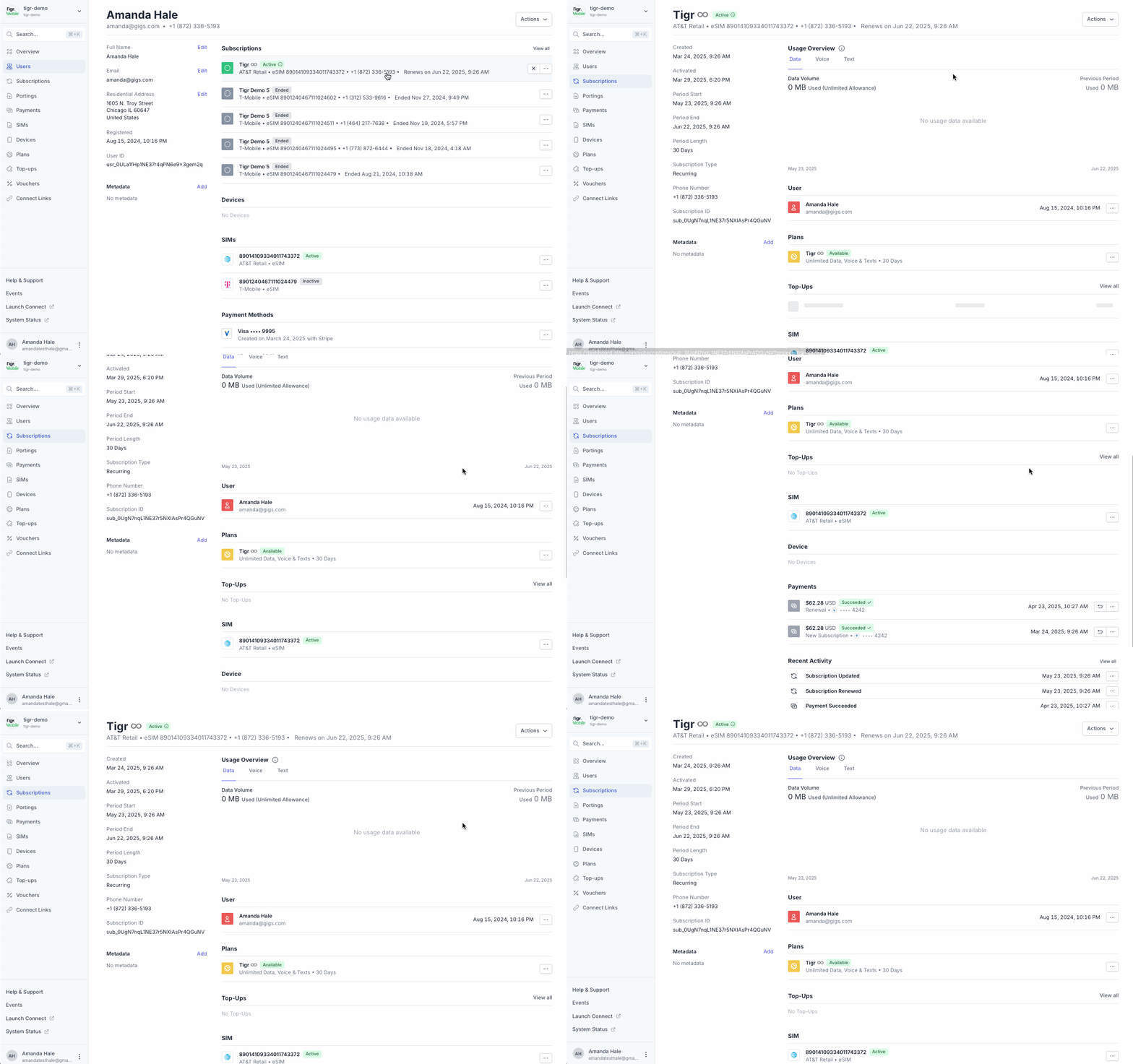
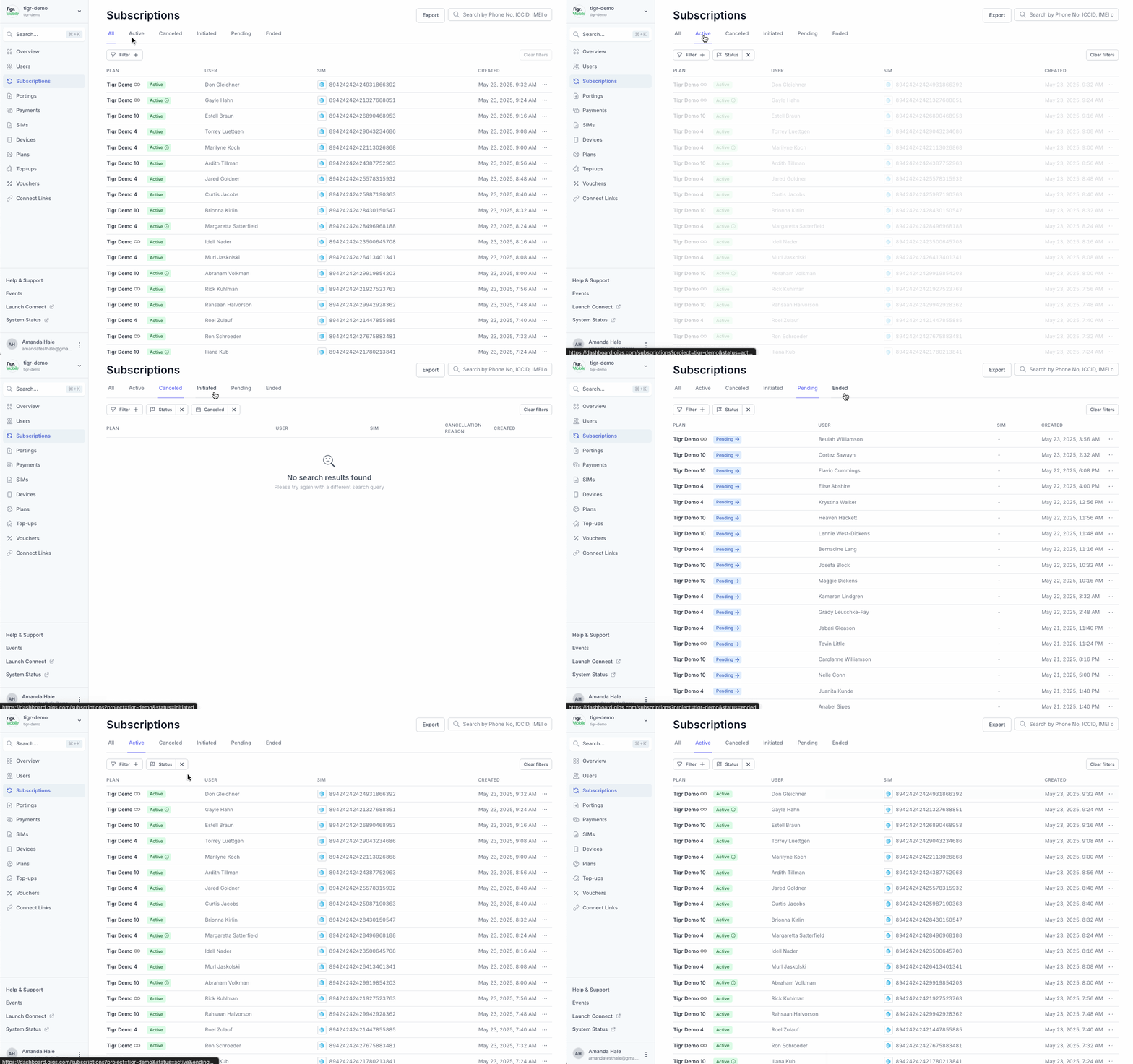
Navigate to Subscriptions in the left nav
Search or filter by phone number, user, or status
Click a subscription to view:
Plan, SIM, phone number, billing cycle
Status and lifecycle timestamps
Associated subscription changes and events
How to Add a Subscription
In Subscriptions, click + New Subscription
Complete form:
User, Address, Plan, SIM (auto or specific), Start Date
Click Create Subscription
A webhook or Dashboard event (
subscription.created) confirms activation
How to Change a Plan
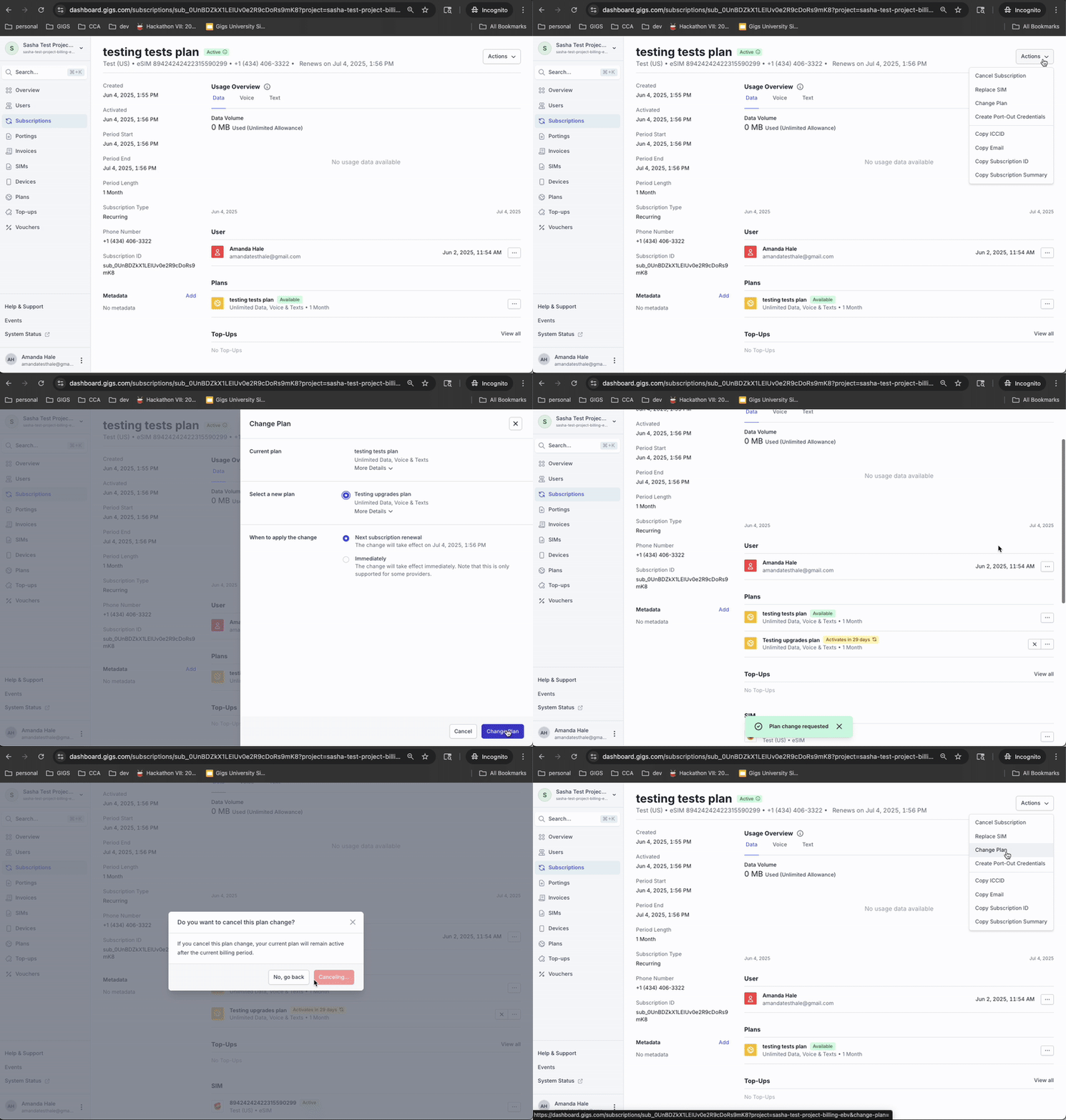
Open the subscription
Click Actions > Change Plan or SIM
Select new Plan and/or SIM, and schedule date
Click Submit
A
subscriptionChange.pendingevent appears; status updates onceapplied
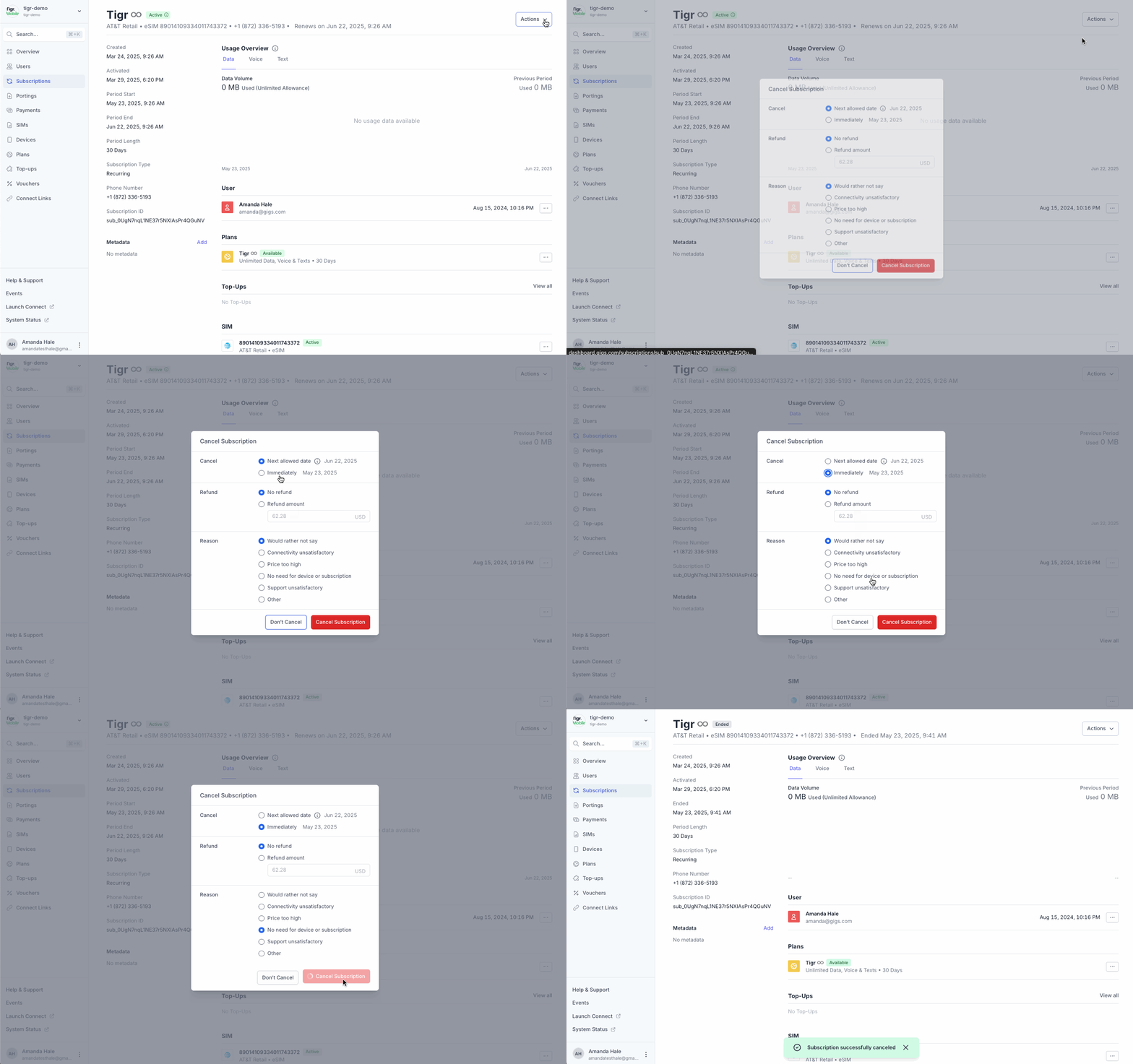
How to Cancel a Subscription
Open the subscription
Click Actions > Cancel Subscription
Choose Cancellation Reason and effective date
Click Confirm
A
subscription.canceledevent logs the cancellation
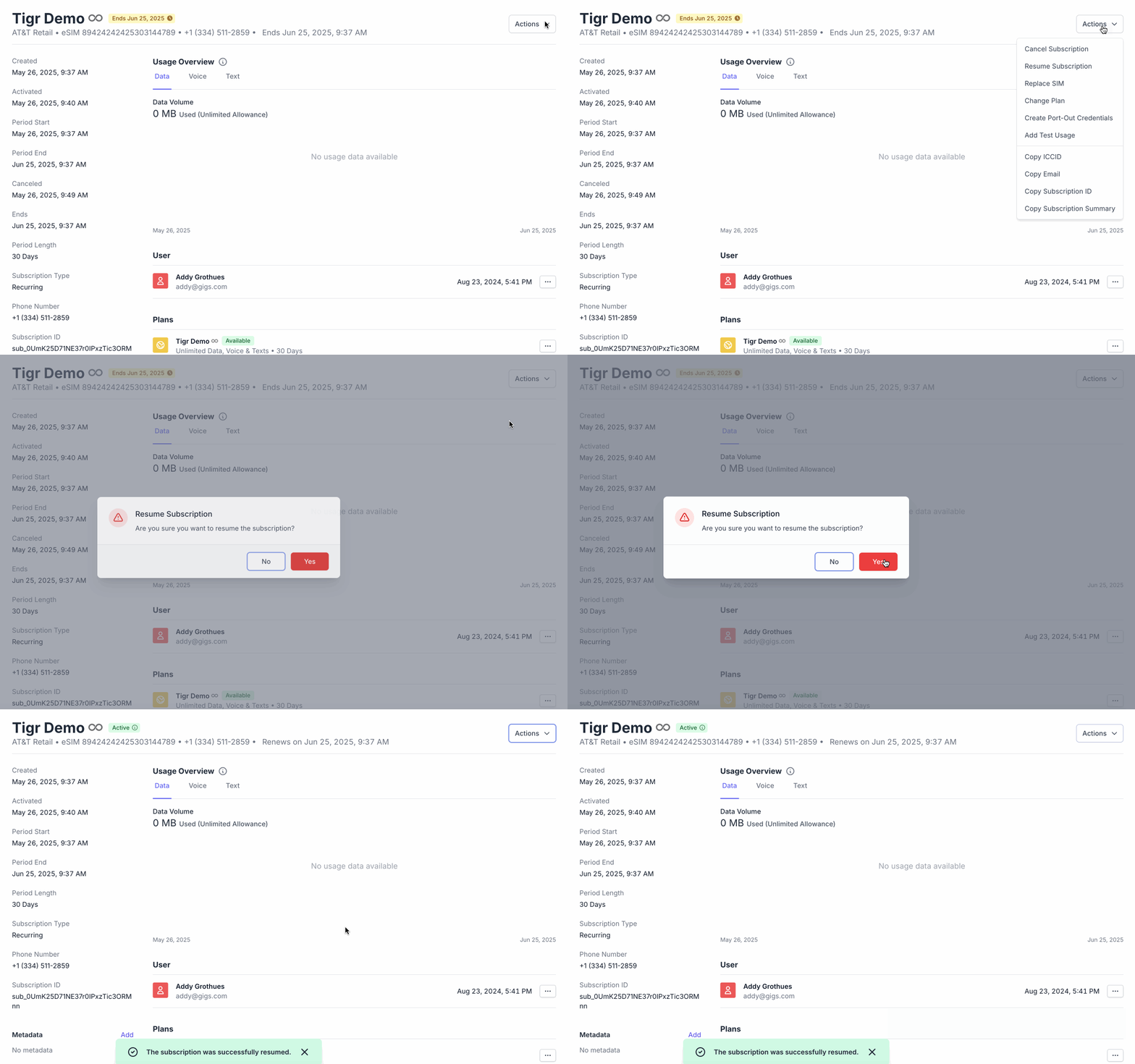
How to Resume a Subscription
For subscriptions with a scheduled cancellation (status still active but set not to renew), open the subscription
Click Actions > Resume Subscription
Confirm or select new Start Date
Click Resume
A
subscription.resumedevent confirms the restart
How to Monitor Subscription Status
Watch Dashboard statuses:
active,pending,initiated,restricted,endedUse the Events tab for lifecycle context (
activated,canceled,resumed,subscriptionChange)For major changes, escalate if
subscriptionChangestays pending or fails (check event failure codes)
This article doesn't cover:
Getting started →Getting started with the Gigs Dashboard
Reading Events →Reading the Events tab